Cancelling your registration will remove your access to the event. If you proceed, you will no longer be able to participate or access event-related materials.
Deleting your account will remove your access to the event.
Resume Review Signup Opens for National Members ✉ Need Help?
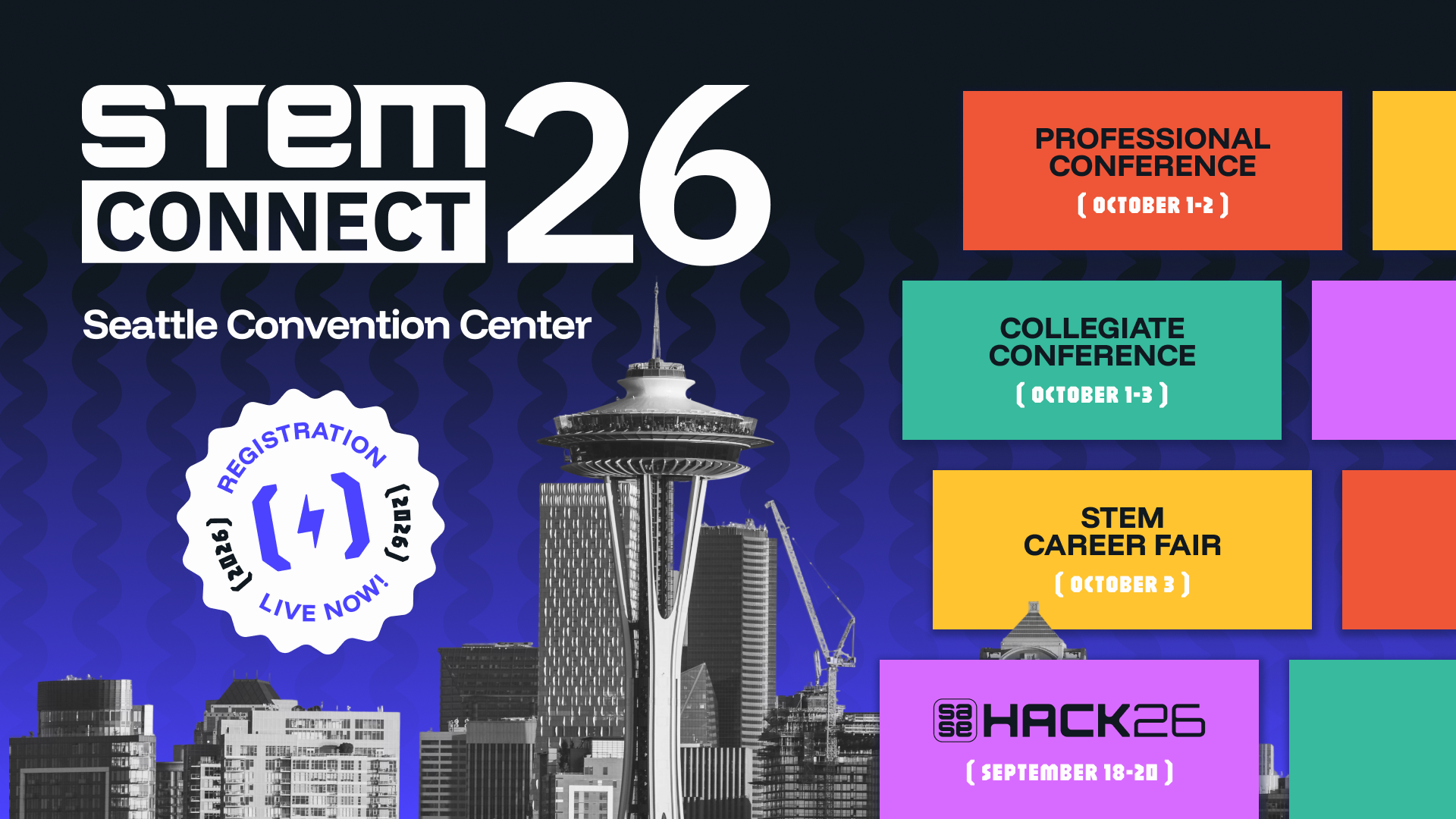
STEM Connect is the premier professional and leadership development conference, designed to equip top STEM talent from universities and enterprises with the skills, networks, and insights needed to thrive in today’s workforce.
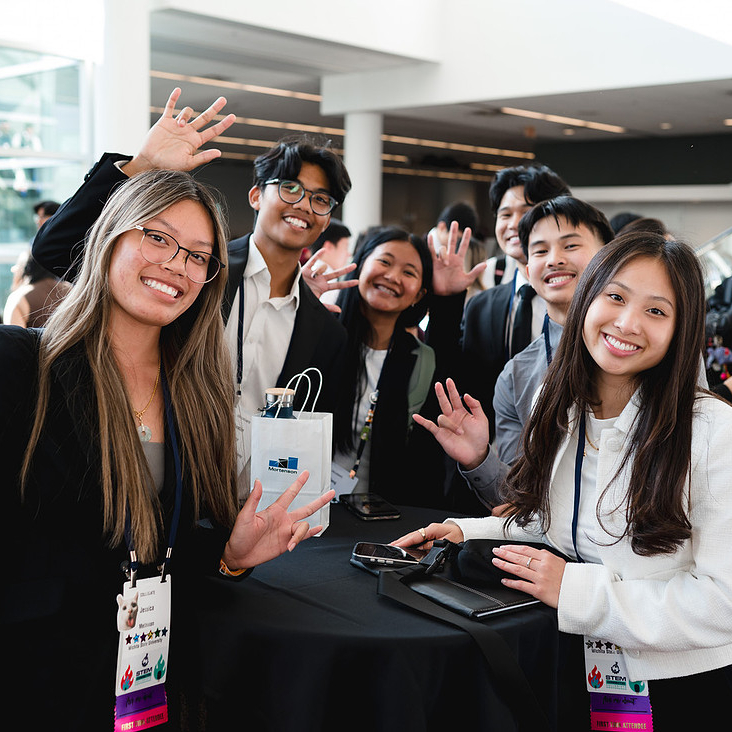
Workshops, panels, and networking events are designed specifically with Collegiate attendees in mind, offering tailored opportunities to connect with peers and top employers.
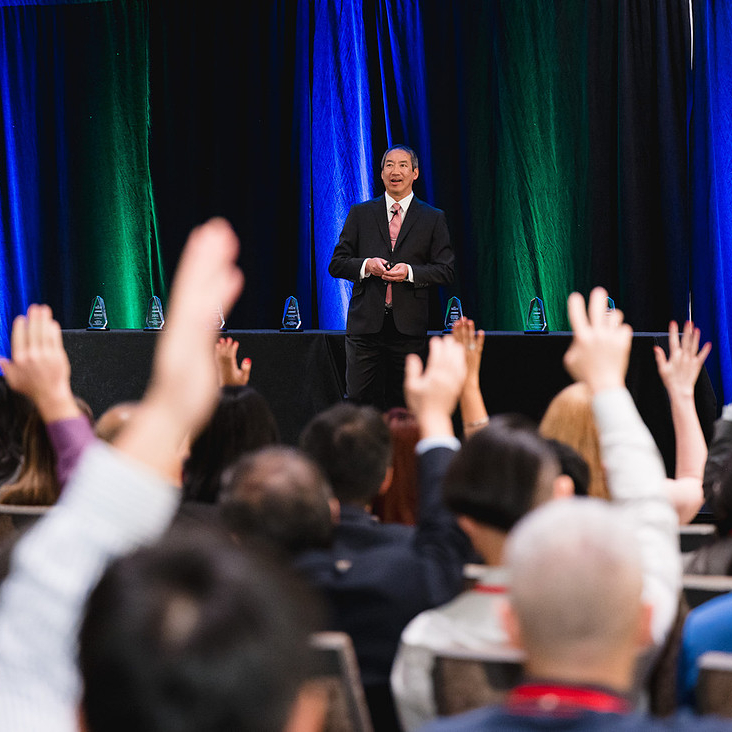
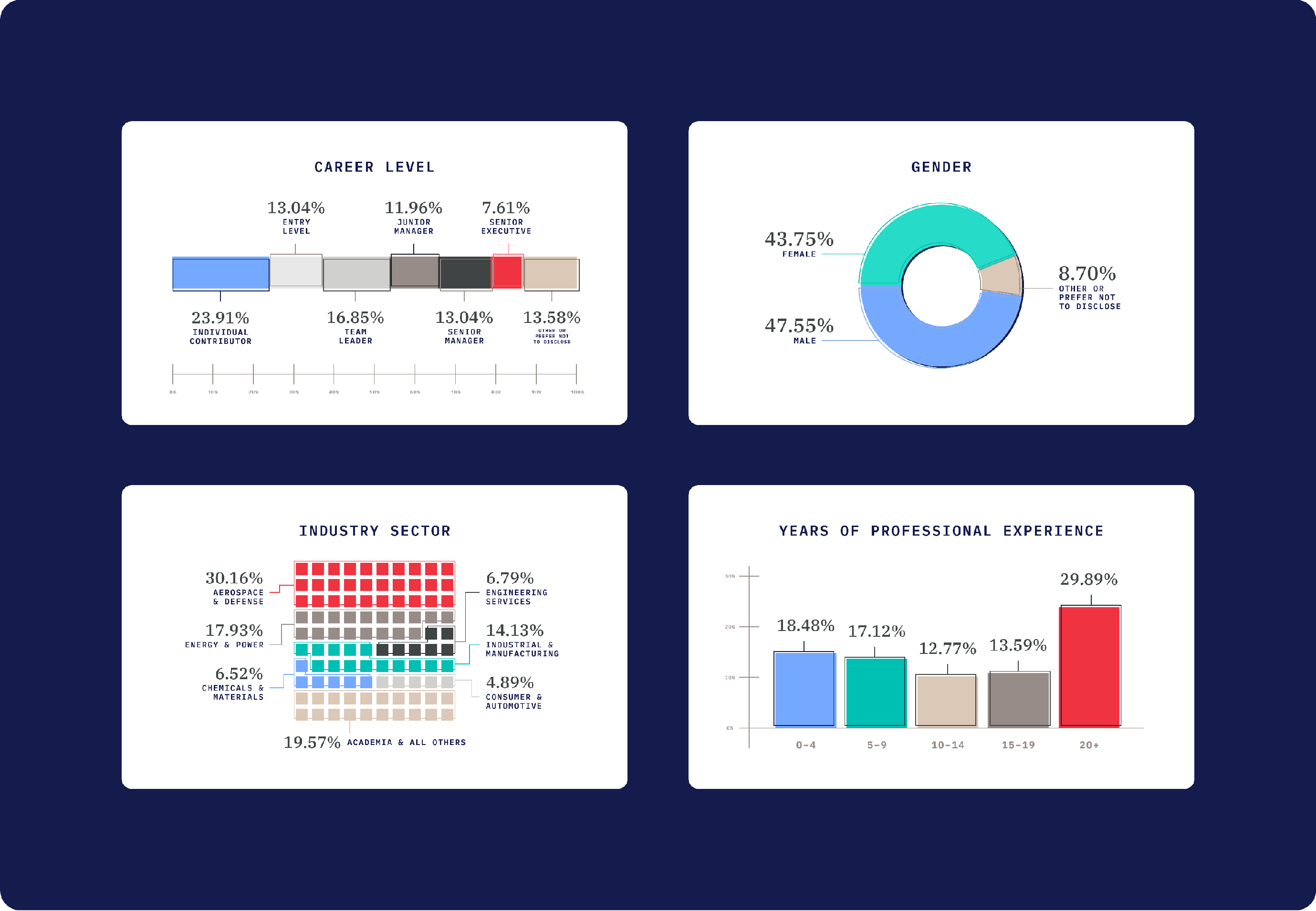
Professional attendees enjoy a dynamic experience featuring in-depth leadership training sessions, topic-based workshops, and senior executive panels.

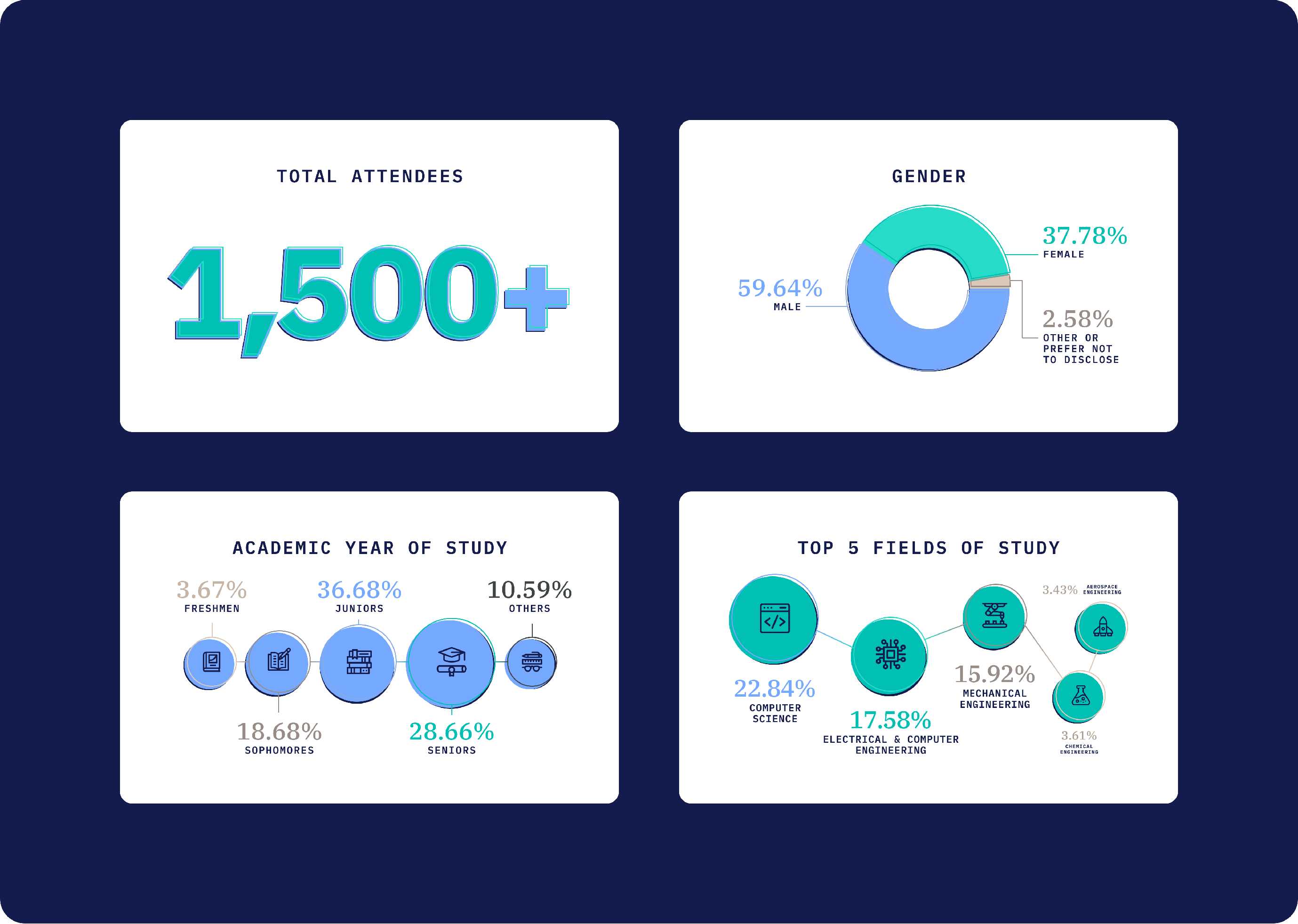
Each year, STEM Connect hosts a STEM career fair in the U.S. With a network of more than 15,000 students and professionals, STEM Connect provides unique access to technical talent across the U.S.
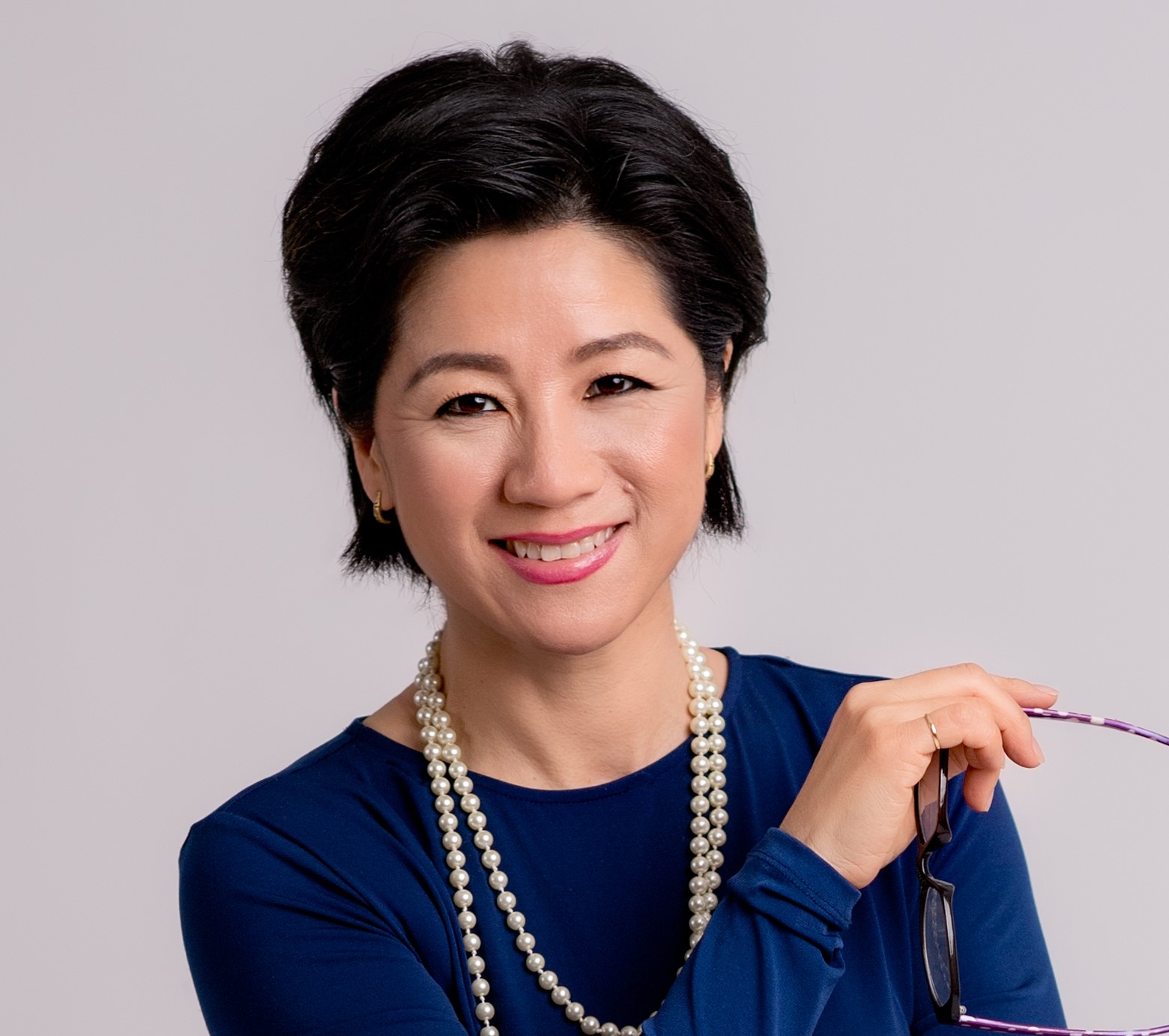
READ BIO
Dottie Li is the Founder and CEO of TransPacific Communications and a nationally recognized leadership communication expert who helps professionals strengthen their presence, build workplace relationships, and communicate with greater clarity and influence.
Dottie brings decades of experience across journalism, public relations, executive communications, government, associations, and corporate environments. Her career has taken her from broadcast and print journalism to serving as a corporate spokesperson and public relations executive, followed by work at the White House supporting media advance for presidential trips around the country and the world. She later served as communications chief for several large national and international nonprofit organizations.
As a STEM Connect leadership competency faculty member, Dottie helps STEM professionals develop practical communication behaviors that support career growth and workplace effectiveness. Her sessions focus on building strategic networks, strengthening professional presence, becoming more approachable and collaborative, and communicating ideas in ways that earn trust, visibility, and support.
Dottie’s facilitation style is practical, engaging, and grounded in real workplace experience. She helps participants understand how small communication choices — from introductions and greetings to storytelling, body language, stakeholder conversations, and follow-up — can shape reputation, collaboration, and leadership influence.
She is an in-demand keynote speaker and trainer whose work has supported professionals across public, private, and nonprofit sectors. Dottie was named an American Express Ambassador in 2023 and has been recognized multiple times as one of Maryland’s Top 100 Women by The Daily Record. Her voice is also known to millions as the Voice and Voice Coach of Rosetta Stone’s Mandarin products.
Dottie supports STEM CONNECT participants in building the communication habits, relationship skills, and leadership presence needed to thrive in complex professional environments.

READ BIO
I partner with high-capacity leaders to cut through the noise, reclaim focus, and elevate their performance – without burnout or compromise. My clients include executives at Google, Northrop Grumman, Collins RTX, US Bank, the NFL, Daimler Truck, and Sompo Intl. – high achievers who demand clarity, systems, and results.
Over the past 16 years, I’ve coached and advised across industries and disciplines, helping clients consistently achieve outcomes beyond what they thought was possible. My coaching approach is grounded in the belief that we must know ourselves to lead ourselves, and that transformational leadership is often personal before it becomes professional.
I earned my early stripes on Wall Street, where high-stakes execution was non-negotiable. Later, I transitioned into higher education and career counseling, helping clients navigate major inflection points, transitions and the gap between achievement and meaning, which gave me a deep understanding of the psychology behind sustainable growth, not just successful results.
And in building a high-performance piano studio, I developed a system of taking students from zero to elite performers under deadline and onstage. My core system included a repeatable framework for deliberate practice, resilience, and results under pressure. I invested in long-term, high-trust partnerships that helped my clients push past resistance, master complexity, and perform well – until their performance became an extension of who they simply were.
That same trust-based structure now fuels my coaching work with executives navigating professional environments. I help them align their identity and performance, and develop into being the kind of leaders others want to follow. The Five Voices framework blends strategic challenge with deeply personalized support, unlocking clarity, confidence, and real behavioral change in how we communicate and lead others.
Christine Lee has a B.A. in International Relations from Wellesley College and M.Ed. in Counseling from UCLA. She is a certified coach with GiANT Worldwide.
_1788201644779.jpg)
READ BIO
Leonna Choi Luc is an impact-driven consultant and coach with a deep commitment to advancing equity, opportunity, and human potential. She collaborates with leaders and organizations to build strategic infrastructure, programs, and systems that create inclusive environments and drive effective talent and workforce development.
With a strong foundation in people and program operations, Leonna has guided clients across sectors in building sustainable frameworks and actionable strategies that align with their mission and values. Her work spans the full lifecycle of organizational growth—from developing equitable talent pipelines and leadership development initiatives to refining internal processes that operationalize long-term vision and impact.
Leonna brings a relational and systems-focused approach to every engagement, helping leaders and teams unlock potential, navigate change, and scale inclusive practices.
Leonna holds a degree in Sociology from the University of California, Los Angeles (UCLA), and is an ICF-Credentialed Certified Coach.
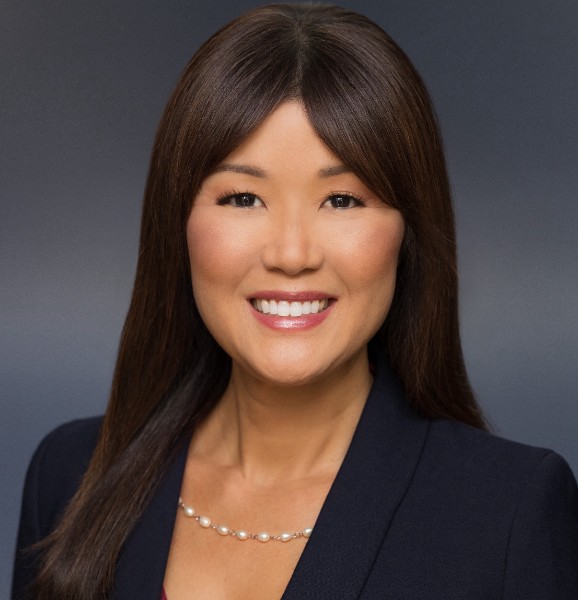
READ BIO
Yon Na, PhD, is an organizational consultant and coach who helps leaders & teams create inclusive cultures and accelerate performance by applying organizational psychology principles.
Throughout her career, Yon has led Organizational Effectiveness and Leadership Development efforts in Fortune 100 and high-growth companies, including Warner Bros., The New York Times, Microsoft, Johnson & Johnson, and Nordstrom. She partners with her clients by leveraging research and assessments to design customized solutions.
Yon’s research area centers on the intersection of identity, culture, and leadership. She shares her peer-reviewed research on Asian women in leadership at conferences, companies, and colleges. Yon is also the co-founder of Radiance Leadership LLC, an organization dedicated to advancing Asian women in the workplace. She developed the Radiance Leadership Development Program, which combines her research, organizational psychology, and her experience leading in Fortune 100 companies.
Yon holds a doctorate in Organizational Psychology from the California School of Professional Psychology at Alliant International University. She received her Master’s in Applied Psychology and a BA in Business Administration from Golden Gate University. Yon is an ICF-Credentialed and Board Certified Executive Coach.
_1788201716623.jpeg)
READ BIO
Jeff Lovell – Executive Coach & Culture Architect
https://www.linkedin.com/in/jeff-lovell-coach/
jeff.lovell@leadersrisingnetwork.com
Jeff Lovell is a senior leadership advisor and the President of Leaders Rising Network, where he partners with executive teams to build healthy leadership pipelines, align culture with strategy, and create environments where people thrive. With a career devoted to leadership development and people strategy, Jeff is known for bringing clarity, depth, and a grounded presence to the work of leadership.
As a certified practitioner in relational intelligence frameworks and tools, Jeff helps leaders grow in the most essential leadership skill: self-awareness. His coaching goes beyond quick wins, helping leaders see their blind spots, navigate complexity, and lead with both confidence and humility.
Jeff serves as a culture architect, working with organizations to design cultures that solve real business problems, not just sound good in theory. He believes culture is only valuable when it enables better decision-making, stronger relationships, and sustained growth.
Jeff brings his conviction that the best leaders don’t simply climb higher alone, they elevate and empower others, as well.

READ BIO
Aaron’s passion is to build thriving cultures in organizations. He has consulted and spoken with leaders in small businesses and Fortune 100 companies, across construction, healthcare, and higher education.
Aaron currently serves as CEO of Leaders Rising Network, an agency dedicated to elevating culture performance for their clients. He teaches leadership at the Bon Secours Memorial College of Nursing and hosts the Leaders Rising podcast.
Aaron is an ACC-certified coach, the author of The New Generation Leader and a graduate of the University of Richmond and holds a Master of Divinity.
Aaron lives in Richmond, Virginia, with his wife and 2 daughters.
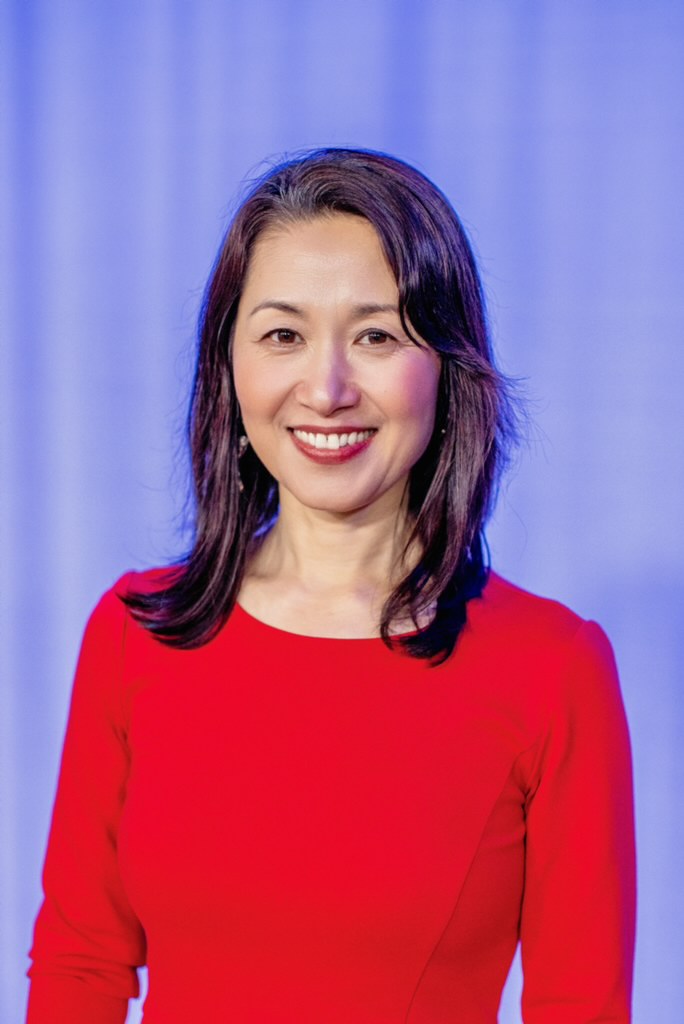
READ BIO
Hope Yin is an award-winning Tech Executive turned speaker, coach and advocate for Women in Tech. She is a seasoned ICF certified executive coach with a purpose for empowering women in STEM. As the Founder & Owner of Blueprint Coaching, she has coached hundreds of women leaders to elevate their power, expand their potential, and amplify their legacy.
With a proven track record in enterprise technology modernization and transformation, Hope has held senior executive roles at two Fortune 200 companies. At U.S. Bank, her work in tech transformation and modernization contributed to multiple industry awards for the company, such as Foresters, Brandon Hall and LinkedIn Top 50 Companies. At JPMorgan Chase, she led multi-million-dollar technology portfolios as the Global Head of Talent Development Technology. Her expertise in technical leadership and strategic career planning has enabled her to break through barriers and advance to executive positions.
Committed to inclusive thought leadership in STEM, Hope is a dedicated advocate for women in technology. She has spoken to tens of thousands of individuals at tech conferences and industry events, sharing her insights on overcoming challenges, building a strong tech leader brand, and achieving career success.
Beyond her professional accomplishments, Hope is a passionate community leader and volunteer. She serves various non-profit organizations as a board member.
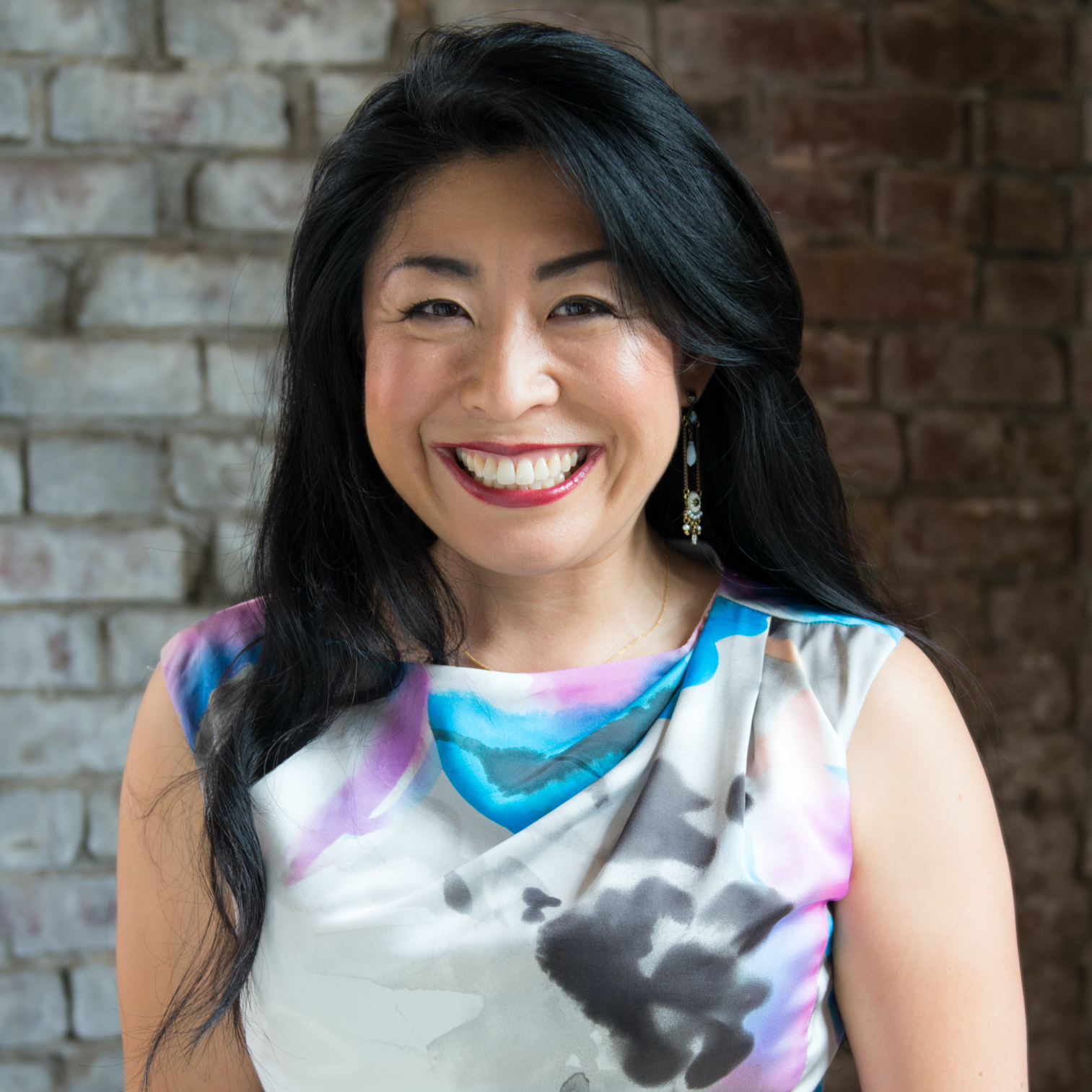
READ BIO
Nozomi Morgan is the CEO of the intercultural leadership development firm Michiki Morgan Worldwide and hosts the Boundaryless Leadership Podcast, offering multinational organizations solutions to be more innovative through co-creation, collaboration, and unleashing collective wisdom.
She leads a team of experts in developing global leaders through her Boundaryless Leadership program. Her team helps organizations develop a Co-created Culture, which she believes is the foundation for individuals and organizations to fulfill their purpose in this world. Born in Japan, her diverse international background — having lived and worked in Asia, Europe, and North America and worked with people from over 30 countries — gives her a wealth of experience and knowledge as a strategic partner to global organizations in leading a diverse workforce.
Chosen as one of “LinkedIn’s 50 Great People to Follow” and the “25 Most Influential Asian Americans in Georgia,” Nozomi is a speaker at corporate and international conferences and a frequent podcast guest. Specializing in intercultural leadership and business in Japan and Asia, her expertise has been featured in ABC, CBS, NBC, BloombergBusiness, Forbes, HuffPost, Japan Times, Japan Today, and Atlanta Business Chronicle. She holds an MBA from Yale School of Management.

READ BIO
Sarita Vasa is a talented bay area-based coach and facilitator who has coached thousands of leaders on presentation skills, executive leadership, women's leadership and team development.
Through all these programs, her purpose is the same. It is to help her clients meet challenge with courageousness and capacity. She has lovingly been given the designation by her clients as "The Velvet Hammer" as she balances kindness with courageousness to help people achieve their greatest potential.
Sarita comes with 25 years of business experience. She spent half of her career founding and running a South Asian Arts nonprofit called ArtWallah, and the other half of that as a coach, trainer, and facilitator. She is also a parent to two teenage kids, and enjoys bringing all of herself into her work.
In Sarita's spare time, she can be found writing chapters for multiple book ideas, exploring new workouts, traveling, or laughing and enjoying her friends from different walks of life.

READ BIO
Lawrence Huey is an entrepreneur, a thought leader, innovator, and transformative leader. Lawrence has spent the last 16 years in non-profit, 10 of them as an Executive Director. Starting an organization from scratch, he’s hired and developed a staff team, and empowered them to become amazing leaders. Today they run the entire organization.
Today he is an Executive Coach and Leadership Consultant. His personal mission statement is “ to create better leaders who will create a better world.”
Lawrence has worked with companies such as Google, Northrop Grumman, U.S. Bank, and S.A.S.E. He also runs leadership cohorts such as the RiseUp Cohort, a leadership training cohort for high performers and for managers and directors who’ve never received management training.
STEM Connect 2026 Partners

Session Seat Reservations & Certification | STEM Connect 2026
Learn how to reserve your seat for limited-capacity breakout sessions and earn your Leadership Essentials Certification at the STEM Connect National Convention.
To ensure an optimal learning environment, select breakout sessions at the STEM Connect 2026 National Convention in Seattle utilize a "Save a Seat" reservation system via the official mobile app.
The Leadership Essentials track is a highly interactive, cohort-based program. Because of the hands-on nature of this training, capacity is strictly limited to 44 attendees, and participants are eligible to earn a formal certification upon completion.
Below are the guidelines and step-by-step instructions for securing your spot and successfully completing the certification on-site.

A showcase of stunning visuals in one place.

Tell your event story through images
Tell your event story through images
Tell your event story through images
Tell your event story through images
Tell your event story through images
Tell your event story through images
Tell your event story through images
Tell your event story through images
How to Reserve Your Seat
Before you begin, ensure you have downloaded the official conference mobile app. If you haven't installed it yet, please visit the App Download & Installation Guide to get set up.
Once installed, use the app to lock in your schedule. Seats are available on a first-come, first-served basis.
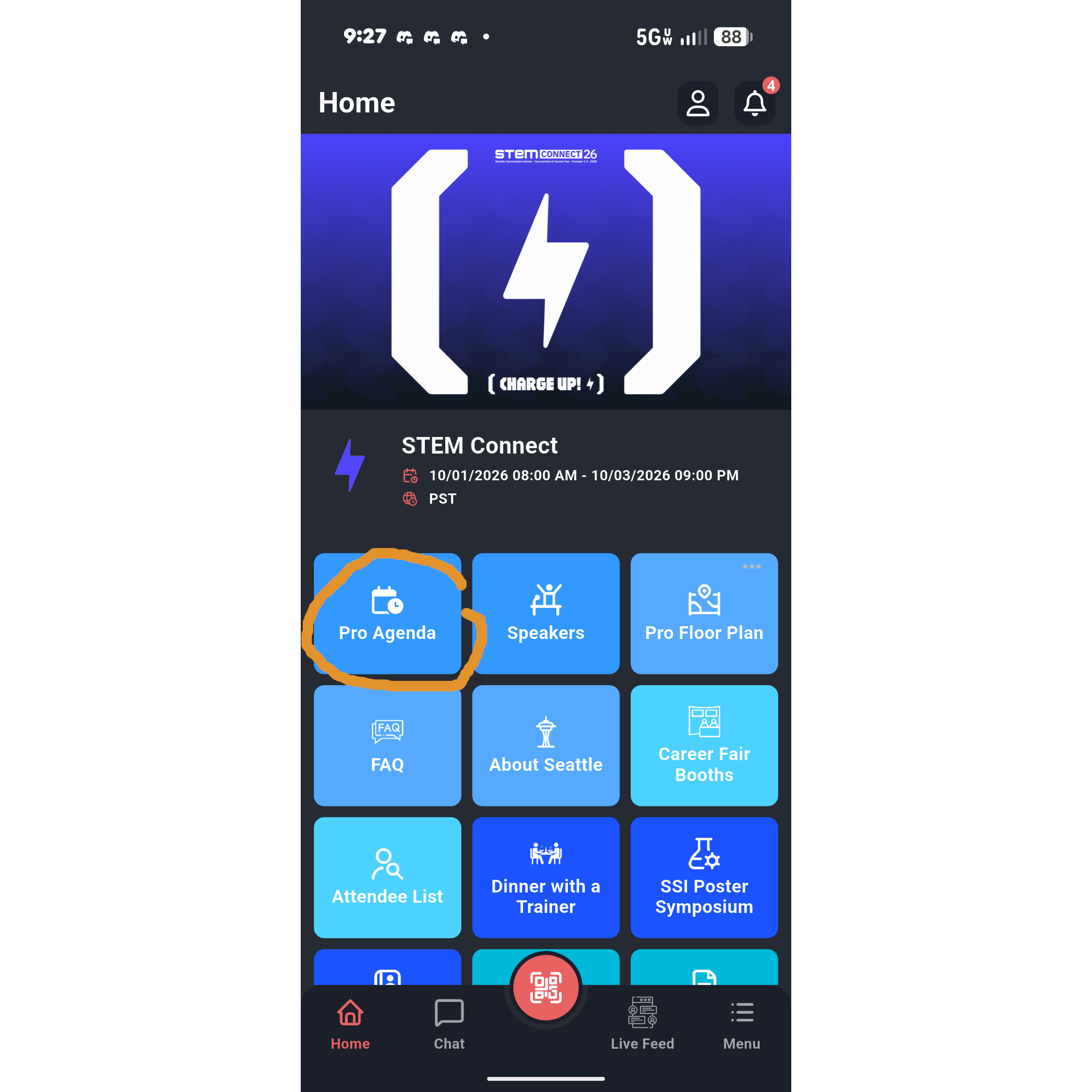
Step 1: Navigate to the Agenda
Open the mobile app and log in using your registration email. From the app's Home screen, tap the blue Pro Agenda button.
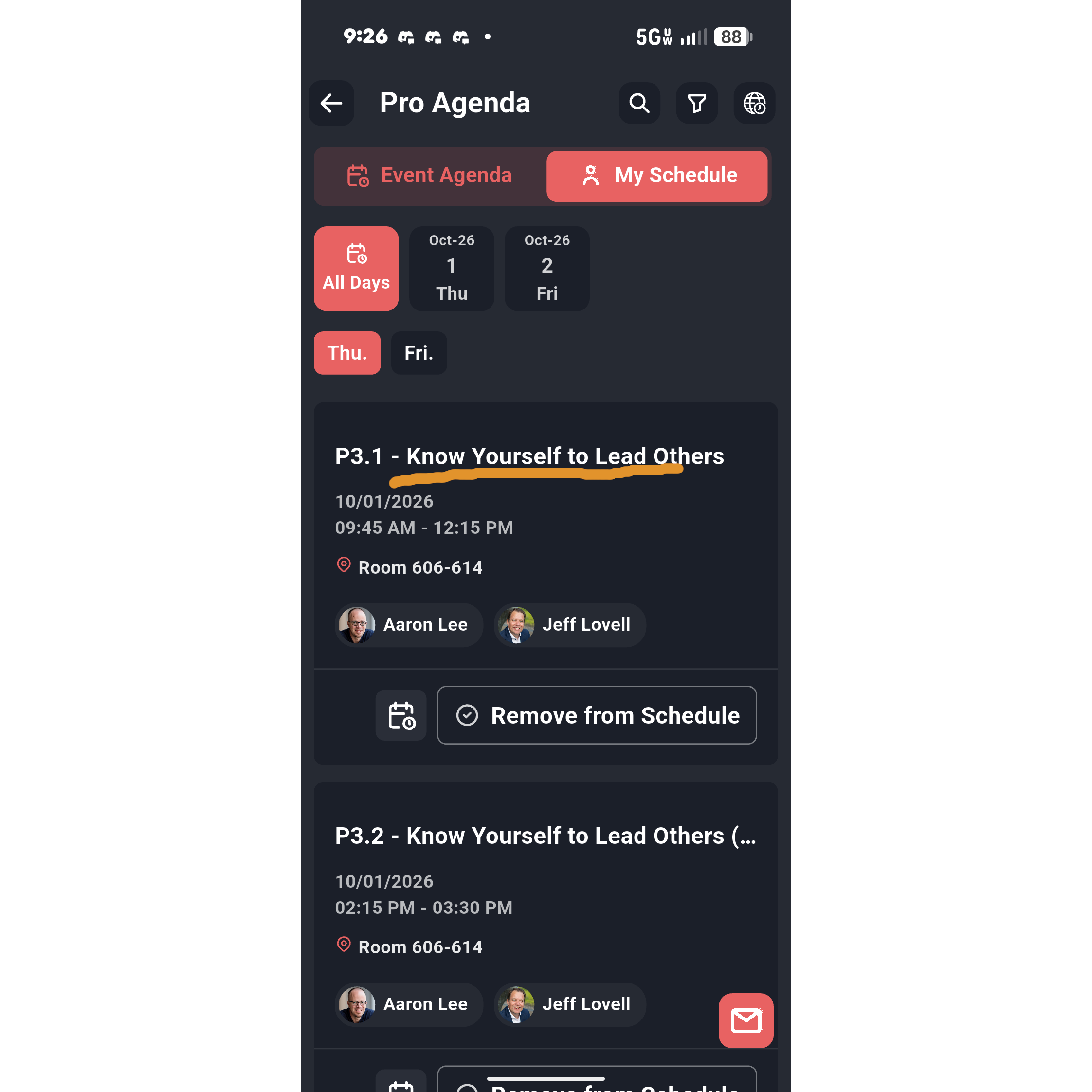
Step 2: Locate and select your Session
Scroll through the agenda to find your desired session, such as P3.1 - Know Yourself to Lead Others.
Tap the session title to open the details page, where you can view the remaining capacity.
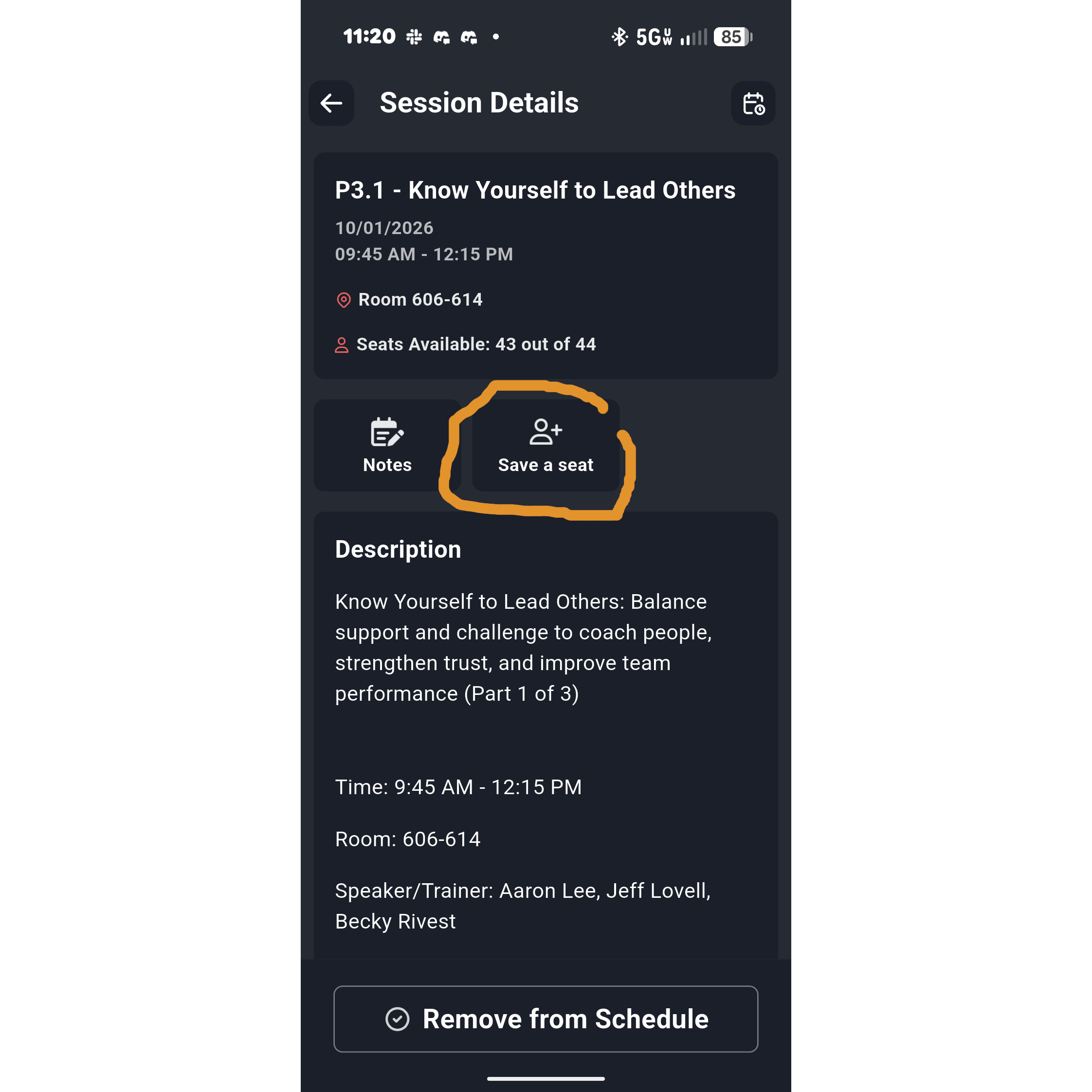
Step 3: Confirm availability and save your seat
Verify the number of open spots under Seats Available.
Then tap the Save a seat button.
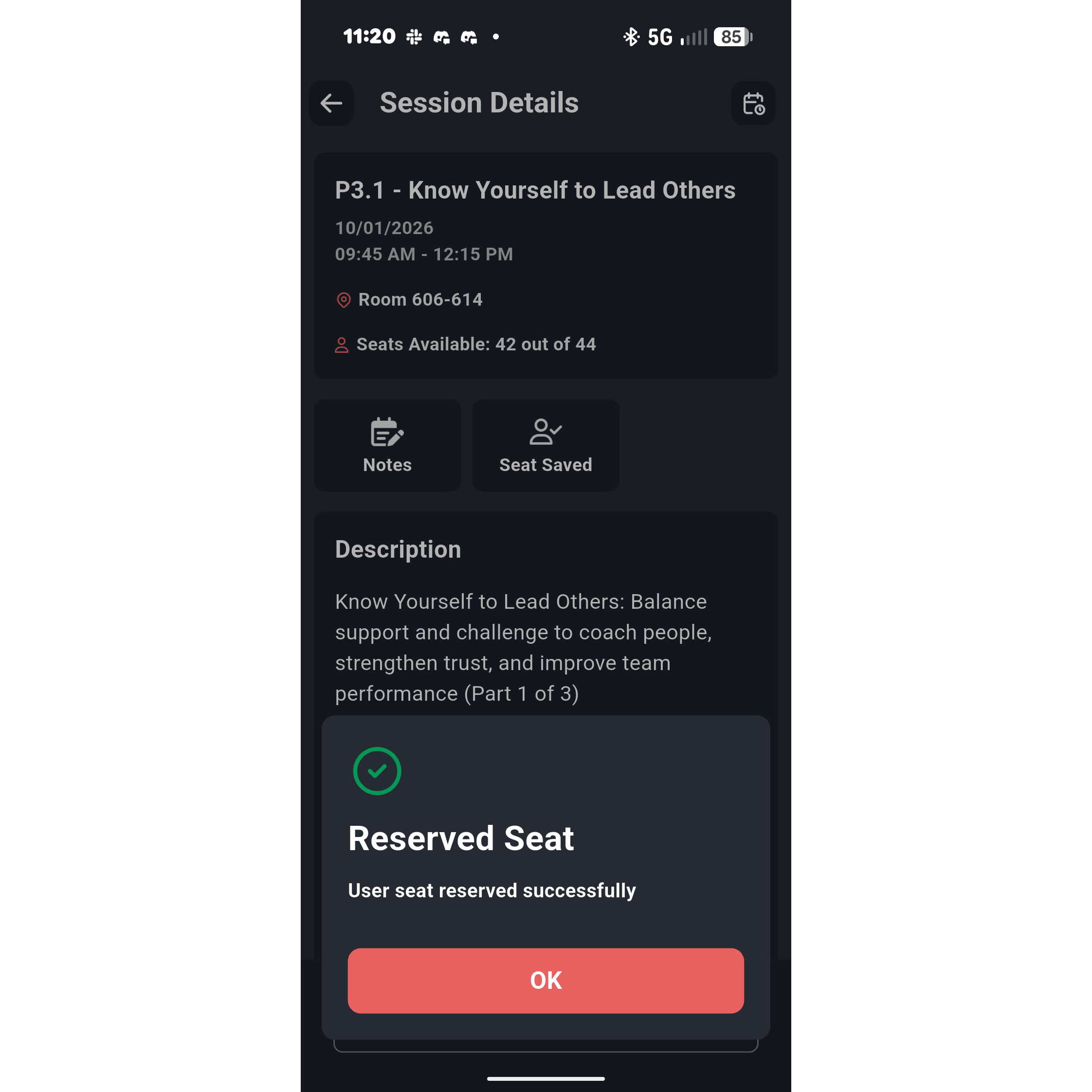
Step 4: Confirm Your Reservation
After tapping the button, a Reserved Seat confirmation window will appear confirming your reservation was successful.
Tap the red OK button to close the prompt. The button on the session page will now display Seat Saved and the available seat count will decrease.
If you selected a Leadership Essentials certification session, ensure you immediately repeat this process for Part 2 and Part 3.
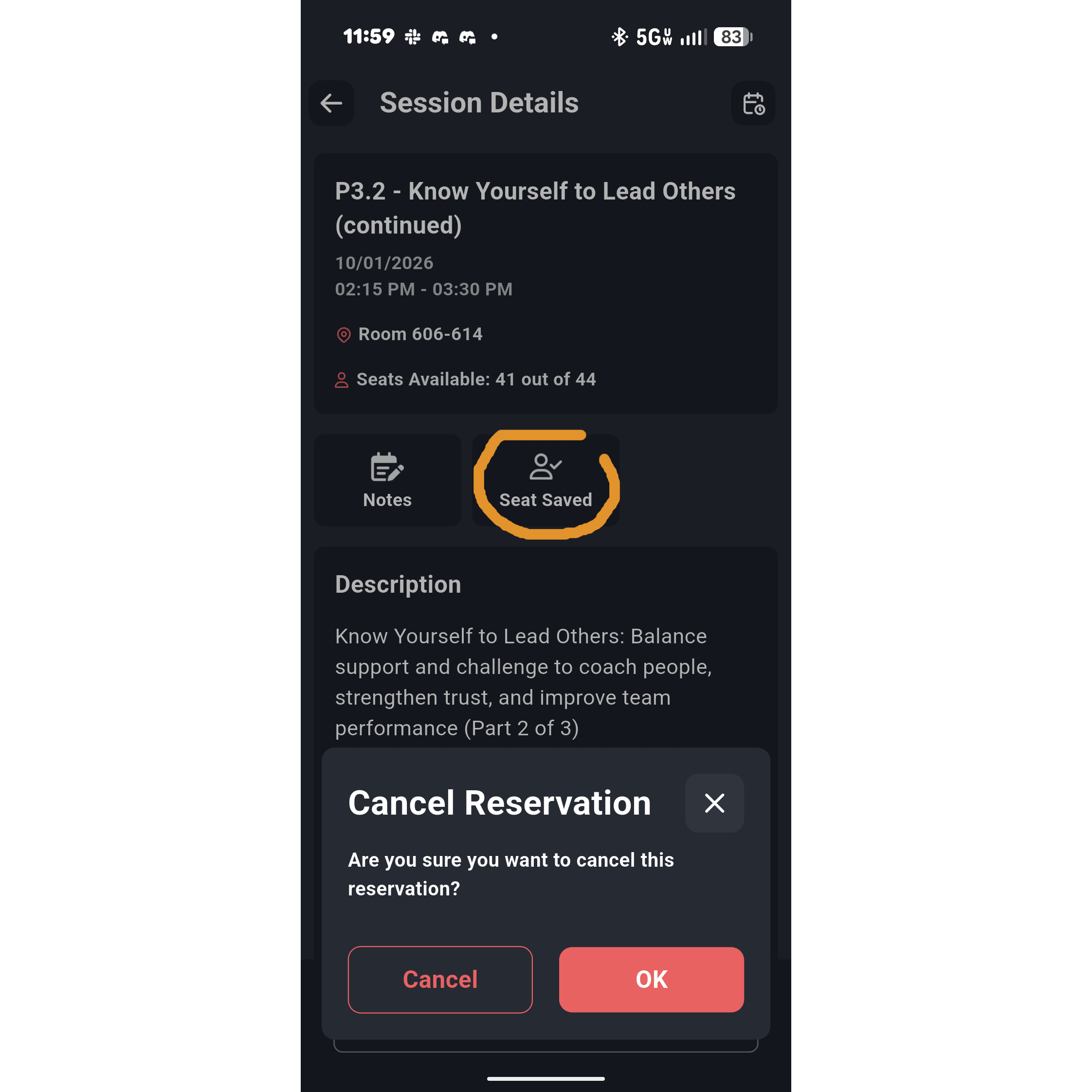
If you can no longer attend, tap the Seat Saved button to release your reservation.
A prompt will appear asking you to confirm the cancellation.
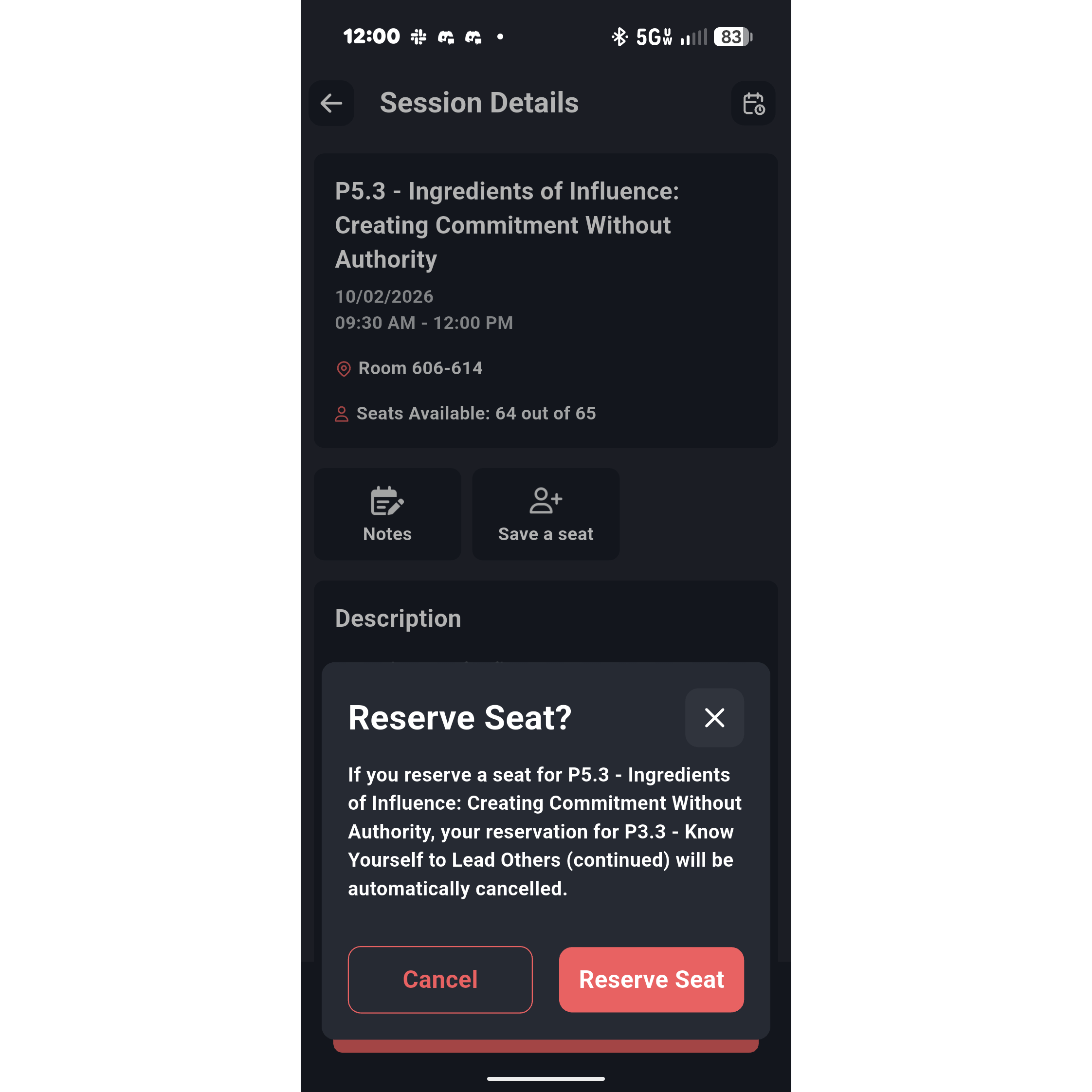
Warning for concurrent selections
If you attempt to reserve a seat for a session that conflicts with your current schedule, a warning popup will appear.
Reserving the new seat will automatically cancel your conflicting reservation.
Email: pro@saseconnect.org
Our team is on it! We typically respond within 2 business days.